The latest version of Apple's mobile operating system, iOS 5, is here and we gave it — and the 200-plus new features it brings — a thorough trial run. Here's what you should know about it and the upgrade process.
Can my device handle iOS 5?
According to Apple, you should be able to run iOS 5 on an iPhone 3GS, an iPhone 4, an iPhone 4S (which will ship with the new operating system), a third-generation iPod Touch, a fourth-generation iPod Touch, an iPad or iPad 2. This means that folks with older iPod Touch devices, the original iPhone, or the iPhone 3G are officially out of luck.
But unofficially? I think that those who are using an iPhone 3GS should think twice about upgrading their devices to iOS 5. While functional and usable, the new operating system definitely feels a bit sluggish on the iPhone 3GS — especially in comparison to how it runs on an iPhone 4.
What makes iOS 5 so much better than older versions of iOS?
Apple proudly proclaims that iOS 5 brings over 200 new features to supported devices — but what the heck does that mean?
Well, for starters it means that you'll be getting a totally revamped notifications system, an improved lock screen, Twitter integration, multitasking gestures, over-the-air software updates, a souped-up Safari app, a new messaging service and more. Of course, not all of the individual features will make your jaw drop — in fact, most probably won't — but the combination of them should, because it is essentially one of the most compelling mobile operating system available today.
Here are some of the most important new features to keep in mind while debating whether to upgrade your device to iOS 5:
The iOS Notifications Center
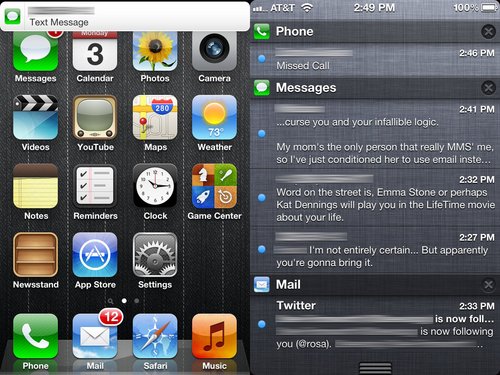
The notification system in iOS 5 is one of the most significant features to be added to Apple's mobile operating system since iOS 4. It's a well-designed and perfectly integrated scheme of notifications, alerts, and popups which revolve around one central drop-down pane — which Apple has dubbed the Notification Center.
New emails, text messages, multimedia messages, reminders, Game Center notifications, mail alerts, Facebook notifications, Twitter notifications and any other sort of items which could normally trigger a push notification can find their way into the Notification Center. They'll be called to your attention on your iOS lock screen, via a regular pop up alert, or with a small non-intrusive banner which briefly flashes across the top of your screen — depending on your preference.
An improved lock screen
The iOS lock screen now provides a lot more information and functionality than ever before. It now lets you see detailed alerts — thanks to the new notifications system — and allows you to access apps directly by swiping across the screen. This way you'll be able to manage specific app alerts and notifications easily.
Twitter integration
iOS 5 has full Twitter integration. This means that you can tweet straight from Safari, Photo or just about any other app. All you need to do is log in with your regular Twitter credentials once and let iOS prompt you to download the official Twitter app. Once that's installed, you'll be presented with new buttons in the appropriate places.
Upgraded Camera and Photo apps
The Camera and Photo apps have received a quite an upgrade in iOS 5. There's now a pinch-to-zoom feature that you can use while taking a picture, the ability to turn a volume button as a shutter button and a lock screen shortcut to the Camera app — meaning that you can snap a photo without needing to enter a passcode.
Oh, and as far as the Photo app goes? There are now some basic image-editing features built right in. You can enhance colors, remove red eyes, or crop images right on the spot — without having to open up a third-party app.
iMessage
iMessage is basically an iOS-only messaging client which allows you to send text, photos, videos, contacts and group broadcasts to iPhone, iPad and iPod Touch users. It basically is a lot like BlackBerry Messenger and will show delivery receipts, read receipts, even IM-style typing indicators.
But as a bonus, the messages — which are securely encrypted — will be pushed to all your devices over Wi-Fi or 3G. This means that you can start a conversation on your iPhone and switch over to your iPad to continue things there without missing a word.
Upgraded Safari app
The lil' ol' Safari app has grown up quite a bit with iOS 5. The mobile browser now features an Instapaper-style Reading List feature which allows you to mark and sync articles for later reading, something called Reader which will format articles to be easier on the eyes, and private browsing for — ahem — the things that you don't want to be saved to your browser history.
What other features are there?
As I mentioned before, iOS 5 has over 200 new features. I elaborated on some of the key ones above, but there are definitely plenty of others that you should know about such as:
- Newsstand: This feature is supposed to act as a direct line to magazines, newspapers and other media. It allows for background downloads of all those things and places them into something that resembles the iBooks app.
- Reminders: This little feature is basically a central to-do list which will keep you organized. As it's location aware, it can even remind you of events based on where you are.
- Dictionary: The entire iOS can now use the Dictionary feature. This means you can check on your word choice from any app.
- Keyboard: The on-screen keyboard will now split into two parts on the iPad in order to make life easier for those who type with their thumbs.
- Game Center: The iOS Game Center now has photos, the ability to compare rank and scores against your friends, a way to see friends of friends, recommended friends and game recommendations. There will now also be turn-based games in iOS, playable on multiple devices.
- Wi-Fi sync to iTunes: Just what it sounds like. You can sync your device to iTunes over Wi-Fi. No more wires, folks! Oh, and your iOS device will back itself up before it syncs. So you'll be backed up every day.
- AirPlay mirroring: You can now mirror your iPad 2 right to your television — wirelessly via AppleTV.
- Multitasking gestures: Swiping across your iPad's screen with four or five fingers will allow you to switch between apps.
- Over-the-air software updates: Your iOS device can now update directly over the air. And instead of having to re-download an entire operating system, you're only downloading final updates — the changes.
What do I need to do before upgrading my device to iOS 5?
Before you try upgrading your device to iOS 5, you need to
download iTunes 10.5. After you've taken care of that, you should really consider backing up your device — just in case something goes wrong.
All you need to do in order to back up an iPhone, iPad, or iPod Touch is connect it to your computer, open up iTunes, right-click the gadget in the "Devices" menu, and select the "Backup" option. The software will take care of the rest. Once the backup process is complete, feel free to tap the "Check for Updates" button to get the iOS 5 download started. iTunes will walk you through the rest of the upgrade process.